Radius Pickup Scanner Support
Last reviewed: · Setup, scanning, customer QR codes and troubleshooting.
Email: hello@radiusdelivery.app
Include your Shopify store domain, the feature involved, what happened and the approximate time. Support is available in English and Polish.
Complete setup and use the overview
In Settings, choose Shopify POS, Browser, or Both. This preference controls the setup checklist; changing it does not revoke existing access.
- Create a pickup station linked to the matching Shopify location.
- Add the Radius Pickup QR block to the order status page for new customer accounts and save the checkout configuration. Opening the editor alone does not activate it.
- For POS, pair a terminal at the station's Shopify location. A pairing request alone is not a connected terminal.
- For Browser, create a private staff link in Team permissions. Staff open it in Safari or Chrome. The usage indicator changes after the first authorized use.
Recommended automation
Configure automatic pickup preparation for each station in Bulk QR codes. Radius prepares eligible paid orders; the customer QR becomes active only after the order is marked Ready for pickup in Shopify. Shopify Flow notifications are optional and require your own workflow and delivery service.
Understand the overview
Overview counts confirmed pickups, split between Shopify POS and Browser. It counts completed pickups, not scans or product units. Channel statistics start with this release; earlier pickups are not guessed or backfilled. Expand stations or terminal and staff access to search, filter, and inspect results.
Pickup date ranges use the displayed shop timezone. Device and browser-session activity uses separate UTC day buckets; clearing browser data can create a new session identifier.
Plan usage
Plan usage shows active accesses and stations, including pending POS pairing under the existing plan rules. Browser sessions do not consume extra plan slots. Shopify presents the current price and approval terms when the merchant selects or changes a plan.
Customer QR — one-time setup
Shopify requires this setup once per store. Afterwards the block updates automatically: Preparing → Ready QR → Picked up. There is no need to add it to each order.
In Shopify Settings → Checkout, edit the configuration. Select the Order status page, add the Radius Pickup Scanner “Pickup QR code” app block and save. Use new customer accounts.
Screenshots from the Shopify editor. Click an image to enlarge it; interface labels may differ by language.
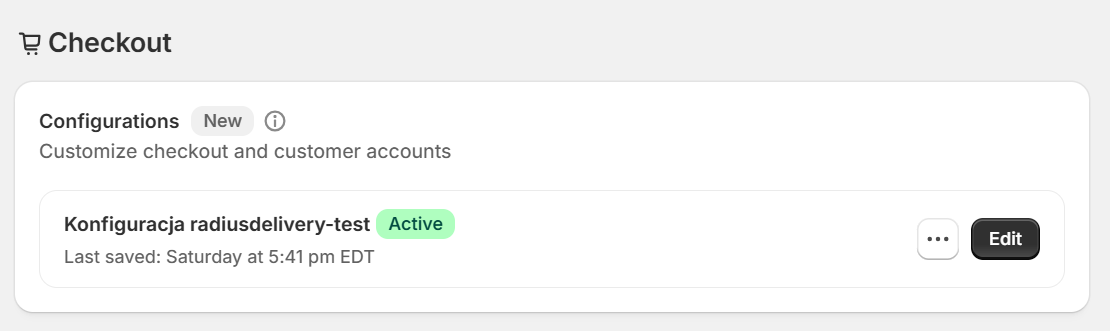
1. In Settings → Checkout → Configurations, click Edit next to the active configuration.
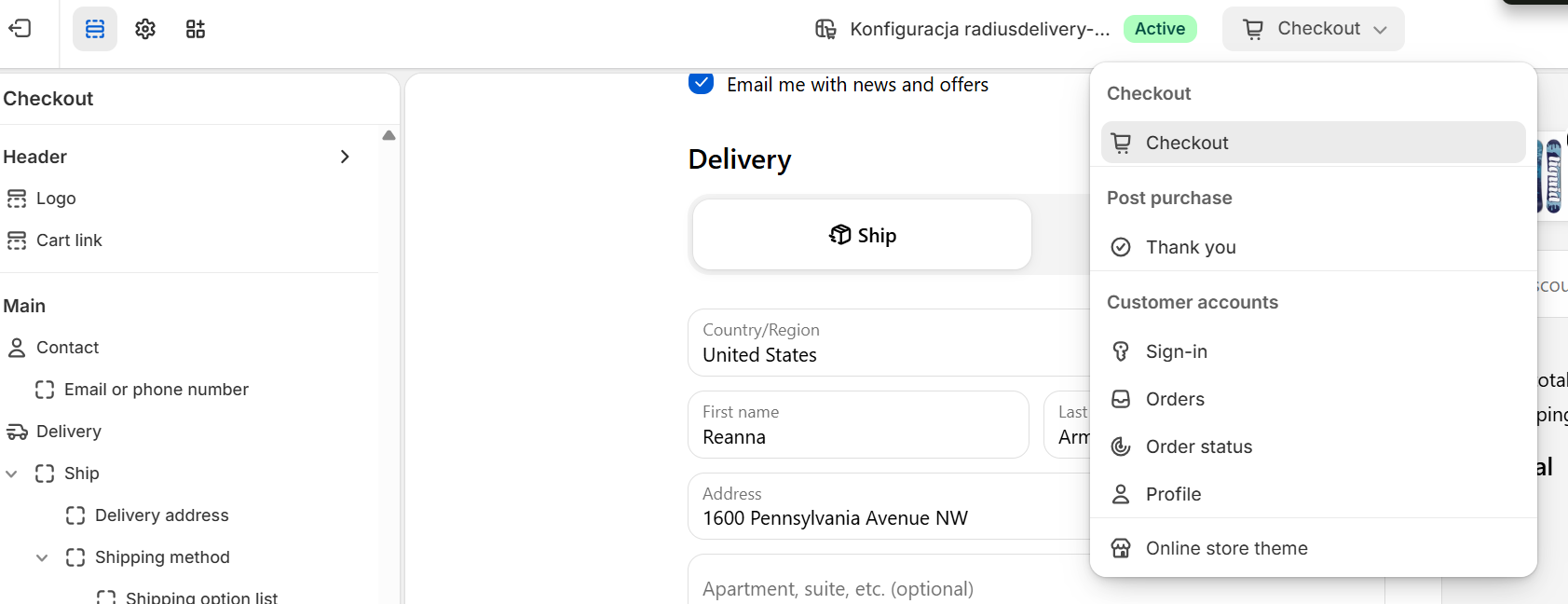
2. Open the page selector at the top. Under Customer accounts, select Order status.
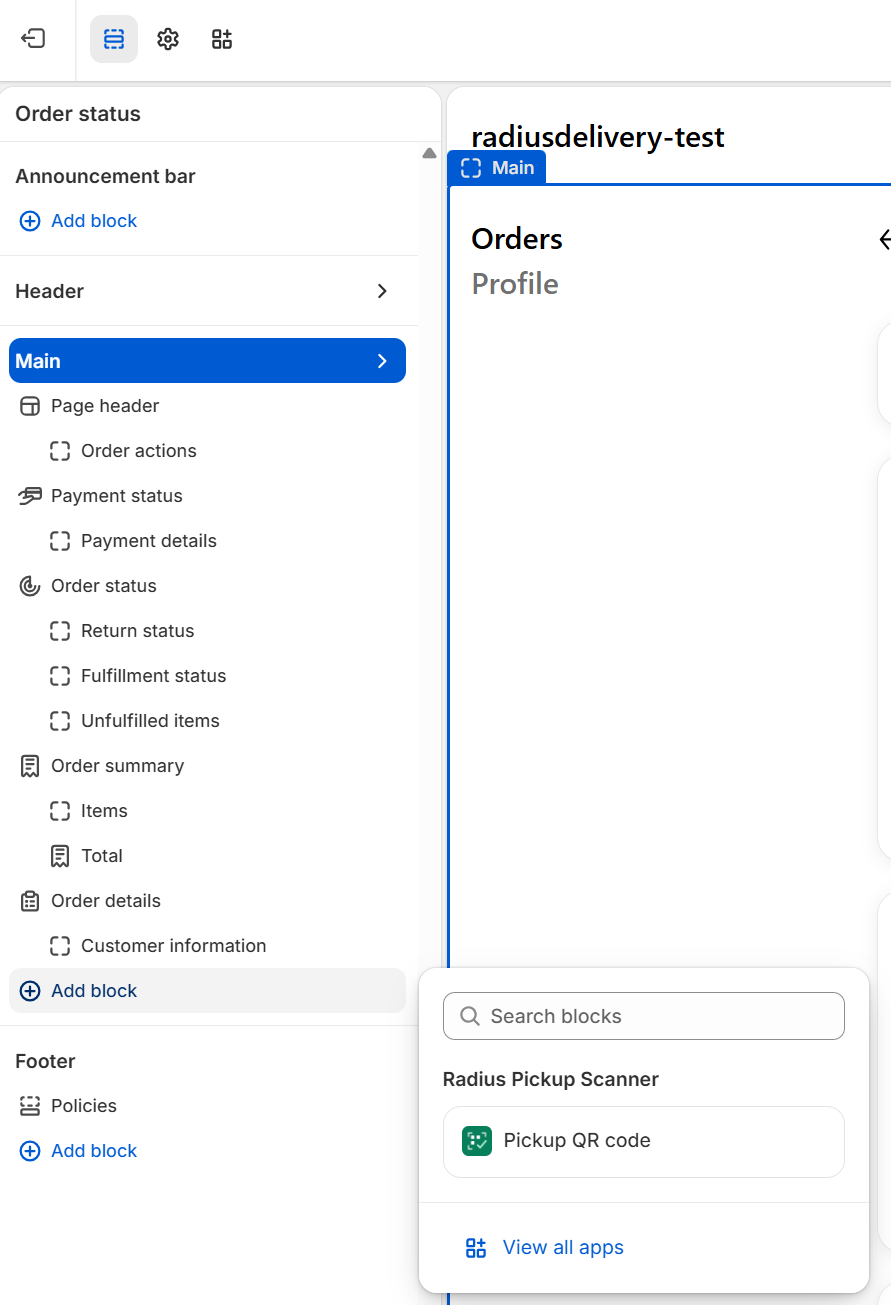
3. In the left sidebar, find Main and click its Add block button. Select Radius Pickup Scanner → Pickup QR code. Do not use Add block under Announcement bar or Footer.
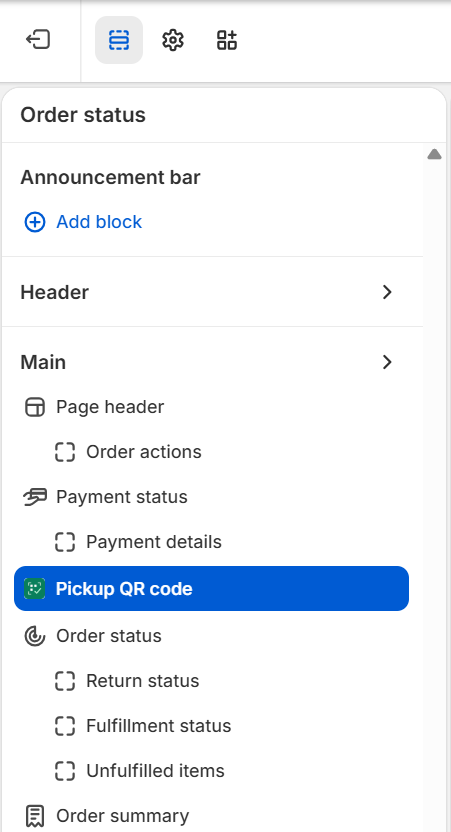
4. Place Pickup QR code in Main, below the page heading and payment information, as shown. It stays easy to find without appearing above the order heading.
5. Click Save in the Shopify editor. Return to Radius and select Check status again. Then check a pickup order in the customer account: Preparing before readiness, an active QR after Ready for pickup, and Picked up after collection.
QR in Shopify Admin — optional shortcut
After installing Radius Pickup Scanner, open an order and choose More actions → Radius Pickup. This action does not require adding a block.
To keep Radius Pickup visible on order pages, open an order, find Blocks and use Add block to select Radius Pickup. Pin it to the page for all staff. Shopify requires a merchant to do this once; the app cannot pin the block during installation.
The block shows the pickup station and status. For a ready pickup, choose Show QR, then Open pickup QR. If a code is unavailable, read the reason shown in the block.
This administrator block is separate from the customer account Pickup QR code block described above. Pinning it does not enable QR visibility for customers. You can use More actions without pinning the administrator block.
QR in the customer account
Customers can show their QR from the order status page in new Shopify customer accounts. The merchant adds the Radius block.
Quick start
- Enable local pickup for a Shopify location. If you use Radius Delivery, you can enable it there for that location; Radius Delivery is optional. In Radius Pickup Scanner, create a station linked to the same location. Enable automatic pickup preparation or prepare orders individually or through Bulk. When a paid order is ready, mark it Ready for pickup in Shopify. Only then does the customer QR become active; you can request notifications through your configured Flow workflow.
- Choose how your team works: in Shopify POS, add the Radius Pickup Scanner tile and pair the terminal with its pickup station. In a browser, staff open their individual link in Safari or Chrome, without a Shopify account or POS. Shopify admin users can choose Open scanner in a new tab. Both methods require internet.
- In POS or a browser, start the camera and scan the customer QR. Check the customer details, items and quantities, hand over the order and select Mark picked up. Wait for confirmation. A second scan shows that the order was already collected. If the result is uncertain, check its Shopify status before another handover.
Connect Shopify POS — step by step
Use Shopify POS on your phone or tablet. Before pairing, install Radius Pickup Scanner and create a Radius pickup station.
Before you start
- Radius Pickup Scanner installed
- Active Radius plan
- Shopify POS installed and signed in — not the Shopify mobile admin app
- Pickup station created in Radius
- POS and Radius station use the same Shopify Location
- Internet connection
- Owner or Radius administrator available to create the pairing code
| Code | What it does |
|---|---|
| Pairing QR | Connects Shopify POS to a Radius station once. Shown by the administrator. |
| Customer pickup QR | Shown by the customer when collecting a READY order. |
1. Prepare the pickup station
Open Radius in Shopify admin → Settings. Create a pickup station and select its Shopify location. In Shopify POS, sign in to the same store and select that location. A terminal cannot redeem orders assigned to a different Radius station. Choose the station for this terminal. POS must use the Shopify Location linked to that station. Deleting accesses or generating a new QR does not change the POS location.
2. Add the Radius tile
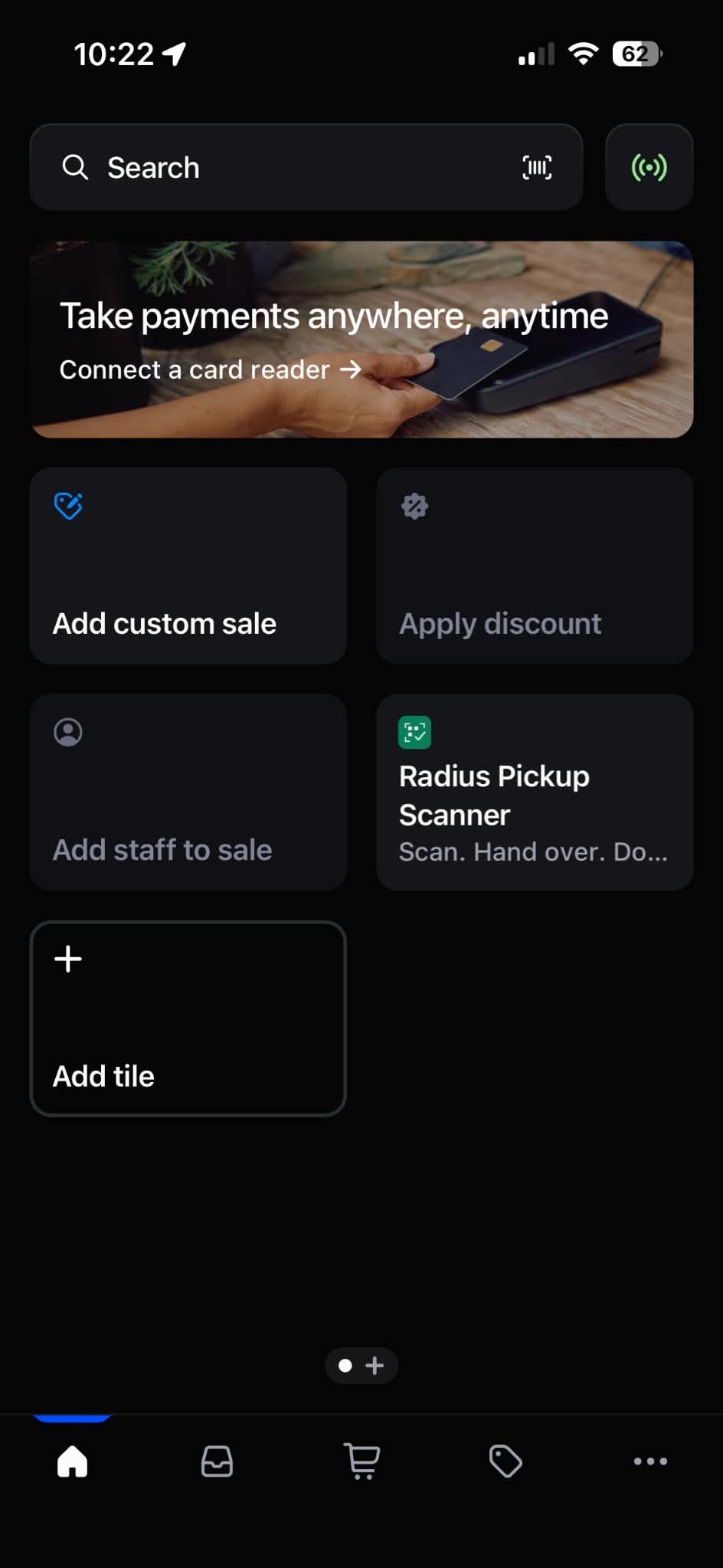
On the Shopify POS home screen, select Add tile, choose the Radius Pickup Scanner app/function and save. You need permission to customize the smart grid. Alternatively, in Shopify admin open Point of Sale → Edit for POS app → Smart grid → Add tile → Embedded Apps → Radius Pickup Scanner → Save. Select the template used by your POS location.
3. Display a pairing code on another screen
On a computer open Radius → Team permissions → expand Shopify POS. Enter a terminal name, for example Front desk iPad, choose the pickup station and select Create pairing code. The card shows a large QR, a six-digit PIN and a 10-minute countdown. Leave this page open. The pairing QR is for staff setup, not for customers.
Keep the QR visible on your computer while you open Shopify POS on the phone or tablet.
4. Open the POS camera and pair
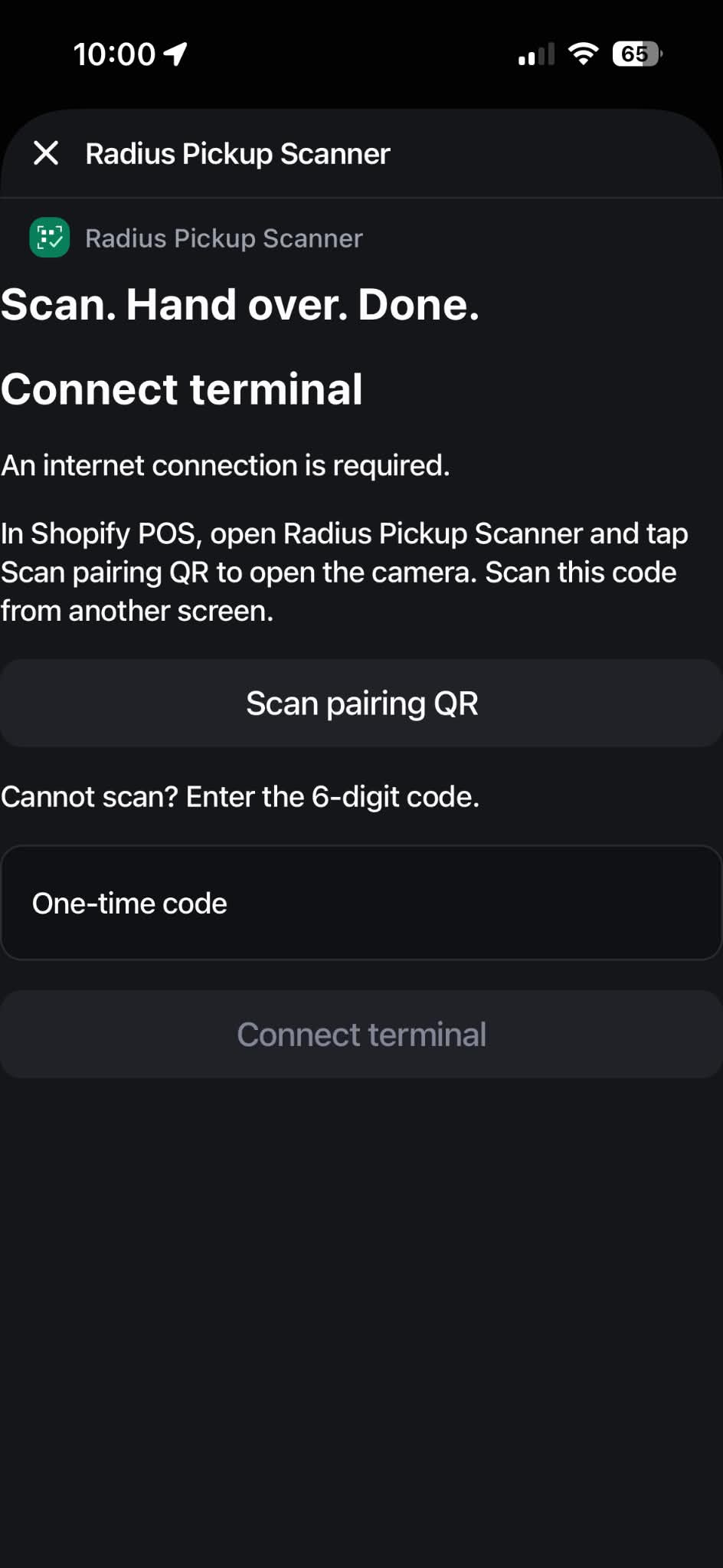
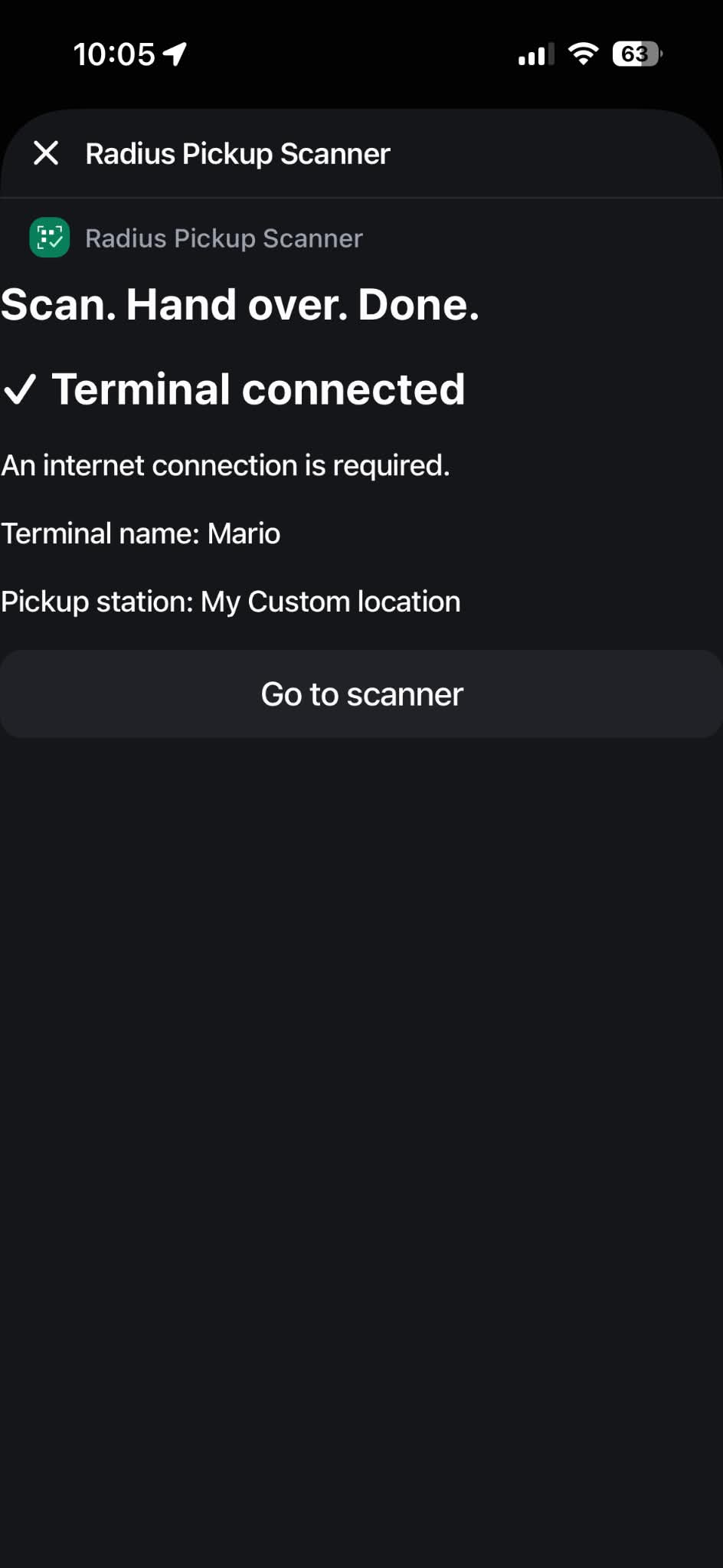
On the phone/tablet open the Radius Pickup Scanner tile. On Connect terminal, tap Scan pairing QR to open the camera and allow camera access. Point it at the administrator’s QR on the other screen. After Terminal connected, check the displayed station and tap Go to scanner. Do not use the ordinary Shopify product search scanner for this pairing QR.
Pairing is required only once
You do not scan the pairing QR before every customer pickup. Pair again only if access was revoked, the terminal or POS staff user changed, stored access was lost, or Radius asks you to reconnect.
5. If you cannot scan, use the PIN
On the same Connect terminal screen, enter the six digits shown to the administrator and tap Connect terminal. QR and PIN belong to one request: using either invalidates both. The PIN works only within an authenticated Shopify POS session. After too many attempts, wait until the current limit window ends — up to 10 minutes — then retry. Generating a fresh code does not reset this limit.
6. Test one pickup before serving customers
Prepare a paid local pickup order and mark it Ready for pickup in Shopify when the goods are ready. Before READY the customer sees a preparation message, not an active QR. In Radius POS scan the customer QR, verify the customer, products and quantities, hand over the goods and select Mark picked up. Wait for success. A second scan must indicate that it was already collected.
If Radius cannot confirm whether the pickup was completed, do not hand over the order again. Check the order status in Shopify first.
Managing a pairing request
In the Shopify POS card in Team permissions, Generate again replaces the previous QR and PIN and starts a new 10 minutes for the same terminal. Use it if the code expired or you refreshed/left the page and lost the display. Delete removes an unused request from the list and invalidates its codes. For a connected terminal, Revoke access disables its access. Generate again is offered for unpaired requests, not connected terminals. Change pickup station: Team → Shopify POS. Choose the station for this terminal. POS must use the Shopify Location linked to that station. Deleting accesses or generating a new QR does not change the POS location. Reopen Radius in POS. If the Shopify Location changed, switch the location in POS too. Pairing is retained.
Troubleshooting
Radius tile is missing
Check the correct store, Radius installation, smart-grid editing permission and template assigned to the POS location. Save the tile and reopen or update POS.
Camera does not open
Inside Radius, tap Scan pairing QR. Check camera permission for Shopify POS in the device settings. Use the six-digit PIN if needed.
Pairing QR does not scan
Use the Radius pairing screen, not the product scanner. Keep the entire QR visible on the other screen; adjust brightness, distance and reflections. Alternatively enter the PIN. A customer pickup QR cannot pair a terminal.
Code expired or already used
Select Generate again in Team permissions → Shopify POS and use only the newest QR or PIN.
Wrong location
“This access belongs to another pickup location.” Choose the station for this terminal. POS must use the Shopify Location linked to that station. Deleting accesses or generating a new QR does not change the POS location. Reopen Radius in POS. If the Shopify Location changed, switch the location in POS too. Pairing is retained.
Plan limit
Revoke unused accesses or choose a larger plan. Each terminal uses one staff access.
Network error
Restore internet. If an operation may have completed, check its status before retrying. For an uncertain pickup, check Shopify before handing over goods again.
No Shopify POS?
Staff can still use individual Radius scanner links in Safari or Chrome. POS is included in Basic, Pro and Unlimited, and each terminal uses a staff access. Internet is required for both methods. Before a busy pickup session, verify camera pairing and a complete test pickup on your actual device. For support, send the store domain, device/OS, POS version, station and error text to hello@radiusdelivery.app; do not send the pairing QR or PIN.
Browser scanner
Use Shopify POS or a browser for pickups. The web scanner supports staff without Shopify accounts and locations without POS. Internet is required.
An administrator creates staff access under Team and assigns a pickup station. Staff open their personal link in Safari or Chrome. Do not share this link with customers.
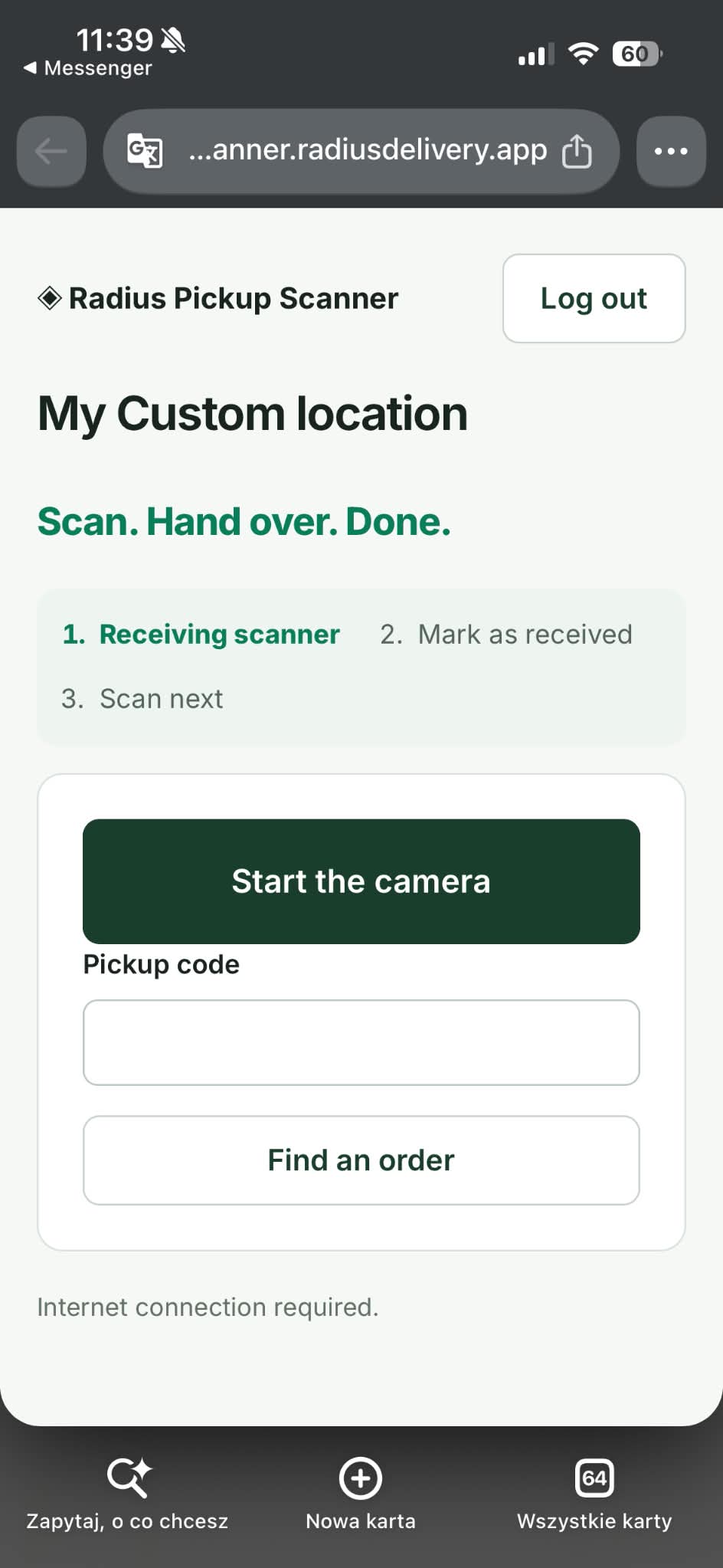
Check the station name. Start the camera and allow camera access. If the link opens inside a messaging app, open it in Safari or Chrome.
Scan the customer's pickup QR. Customers receive access to their QR only after the order is ready for pickup. You can also paste the pickup code and find the order.
Check the order, customer details, products and quantities. Select Mark picked up and check the confirmation. Then scan the next order. Rescanning a collected order should show its previous pickup.
Scanned the wrong code?
RPSPAIR codes pair a Shopify POS terminal once. They are not customer pickup codes and the pickup scanner should reject them. Customer pickup codes start with RPS1.
If you scan a pairing code instead of a customer code, return to the scanner and ask the customer to show the QR next to their order. Use pairing codes only on the terminal connection screen in Radius inside Shopify POS.
If an uncertain result appears after trying to mark a real order picked up, do not hand it over again: check Shopify first. Send support the station, time and error text. Never send QR codes, PINs or personal access links.
Bulk QR codes
Prepare codes for eligible paid pickup orders in a batch. Filter by station, date range and order tag.
Connect pickup codes and collection events to your existing workflows.
Customer notifications
Request delivery of prepared codes through Shopify Flow and your configured messaging provider. A Flow request does not confirm email delivery.
Download ready-made workflows
Installing the app does not automatically create workflow drafts in your store. Import the workflows you need and configure your own copy.
Download workflows — Radius Pickup Scanner (ZIP)
- Install Shopify Flow and unpack the ZIP. Import individual .flow files in Shopify Flow; do not import the ZIP.
- Follow the included instructions and replace store-specific settings. Do not import duplicates of workflows you already use.
- Check each step, test with a controlled order, then turn on the workflow.
Scanner: 5 workflows. Preparation and notification requests require a matching pickup station. QR becomes available only after Ready for pickup. Sending messages requires a separate workflow with your messaging provider; a Flow request is not a delivery confirmation.
The archive includes English and Polish instructions. Edit workflow steps in Shopify Flow. Read the detailed guidance below before activation.
Pickup code created
Order picked up
Duplicate pickup detected
Pickup needs attention
Workflow examples
Enable automation per station in Bulk QR codes. Payment prepares the pickup record; it does not invite the customer to collect. Mark the order Ready for pickup in Shopify when the goods are prepared. Radius then activates the QR and releases scheduled notification requests through your configured Flow workflow. Your messaging provider handles delivery.
Reports with a date range
Export pickup reports for your selected period on Pro and Unlimited.
FAQ
Can my team scan on a phone?
Scan pickup codes in Shopify POS on your phone or tablet: open the Radius Pickup Scanner tile and start the camera. Shopify POS handles sales and pickups; the Shopify admin app is for managing your store. You can also use the Radius scanner in Safari or Chrome without Shopify POS. Staff open their individual scanner link and do not need a Shopify account. Both methods require an internet connection.
How do I prepare many QR codes?
Prepare codes for eligible paid pickup orders in a batch. Filter by station, date range and order tag.
Where does the customer find the QR?
Add the Radius block to the order status page in new Shopify customer accounts. Once a pickup code is prepared, the customer can view it there.
Does Radius send customer emails?
Request delivery of prepared codes through Shopify Flow and your configured messaging provider. A Flow request does not confirm email delivery.
Where can I download reports?
Export pickup reports for your selected period on Pro and Unlimited.
Plans
Every plan includes the complete QR pickup workflow. Start with a 7-day free trial.
Basic
For one pickup point and a small team.
All pickup features listed below
$9.99 / month
Active stations: 1
Active staff accesses: 3
Choose or change planPro
For multiple pickup points and growing teams.
Everything in Basic, plus CSV pickup reports
$19.99 / month
Active stations: 5
Active staff accesses: 20
Reports with a date range
Choose or change planUnlimited
For larger operations with no station or staff-access limits.
Everything in Pro, with unlimited stations and staff accesses
$39.99 / month
Active stations: Unlimited
Active staff accesses: Unlimited
Reports with a date range
Choose or change planIncluded in every plan
- Automatic pickup preparation after payment
- Bulk preparation with station, date and order-tag filters
- Pickup QR in new Shopify customer accounts — add the Radius block
- QR activated only when Shopify marks the order Ready for pickup
- Automatic notification requests through your configured Shopify Flow workflow
- Phone camera scanning in a browser, or manual code entry
- Scan → check products and quantities → mark picked up
- Duplicate pickup protection and collection status
- Station-scoped team access, expiry settings and immediate revocation
- Shopify POS or your phone’s browser.
For paid local pickup orders. Internet access is required. Customer messages are delivered by your connected provider; Flow setup is required for notifications.