Radius Pickup Scanner Support
Last reviewed: · Setup, scanning, customer QR codes and troubleshooting.
Radius Pickup Scanner is available in Wix App Market. Every installation starts with 7 full days free on Unlimited.
Email: hello@radiusdelivery.app
Include your Wix store domain, the feature involved, what happened and the approximate time. Support is available in English and Polish.
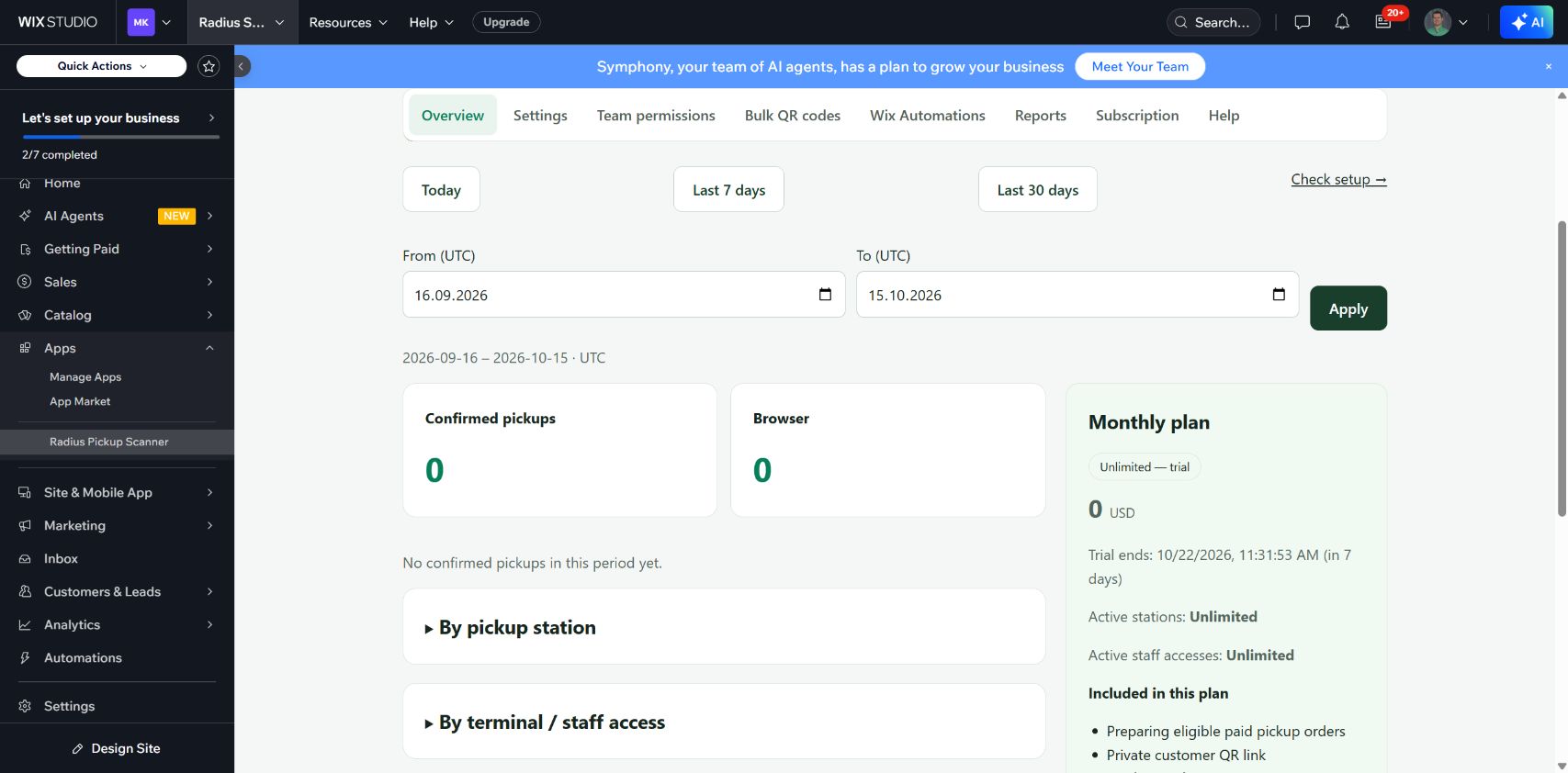
Complete setup and use the overview
Install Radius Pickup Scanner from Wix App Market. Then open Apps → Radius Pickup Scanner in your Wix store dashboard.
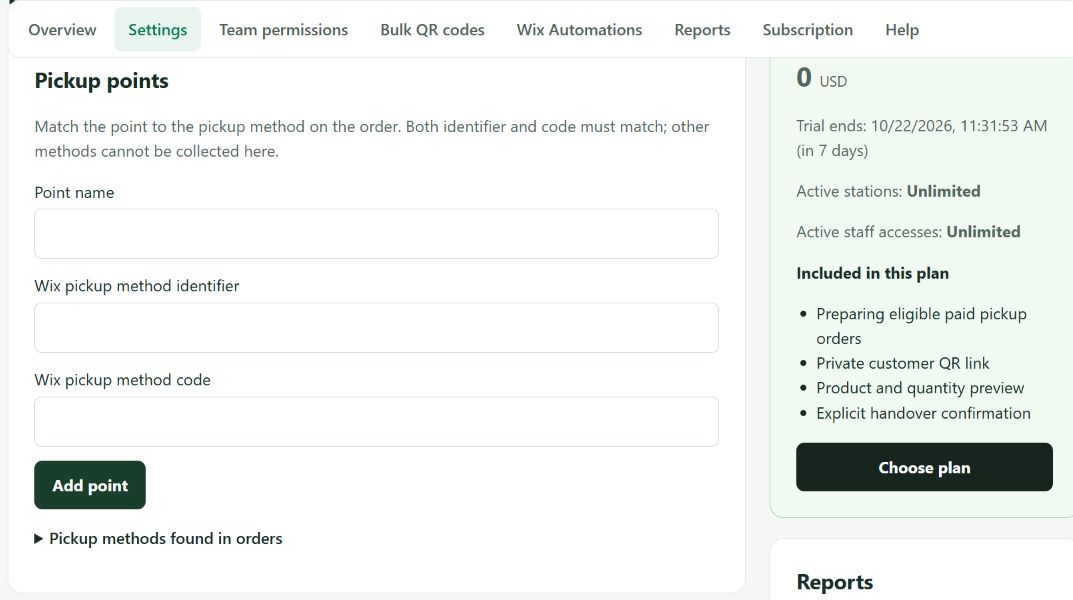
Configure an active pickup point in Radius. Its carrier and pickup code must match the order. A point name alone does not establish this mapping. Native checkout and pickup locations require a separate integration test before use in a live store.
Check one paid, approved, unfulfilled store-pickup order with no refunds. Select the matching point and click Ready for pickup. A QR is issued only after the ready state has been verified.
Complete the full test: ready → customer email/link → QR preview → explicit confirmation → Fulfilled in Wix → repeat scan rejected. The successful synthetic dashboard test does not replace a real checkout test.
Customer QR — one-time setup
Settings → Pickup codes → Show customer link. Send that private link only to the customer for this order. The current integration does not add a native Wix customer-account block.
The link displays a pickup QR for a ready order and remains usable when the page is refreshed. Collection, expiry or a locked order makes it inactive. Do not publish active links or QR images in support tickets.
Quick start
In Settings, select the pickup point and prepare an eligible order.
Open the customer link and verify that it shows the correct order number and point. If email is enabled, also check the actual received message and its button.
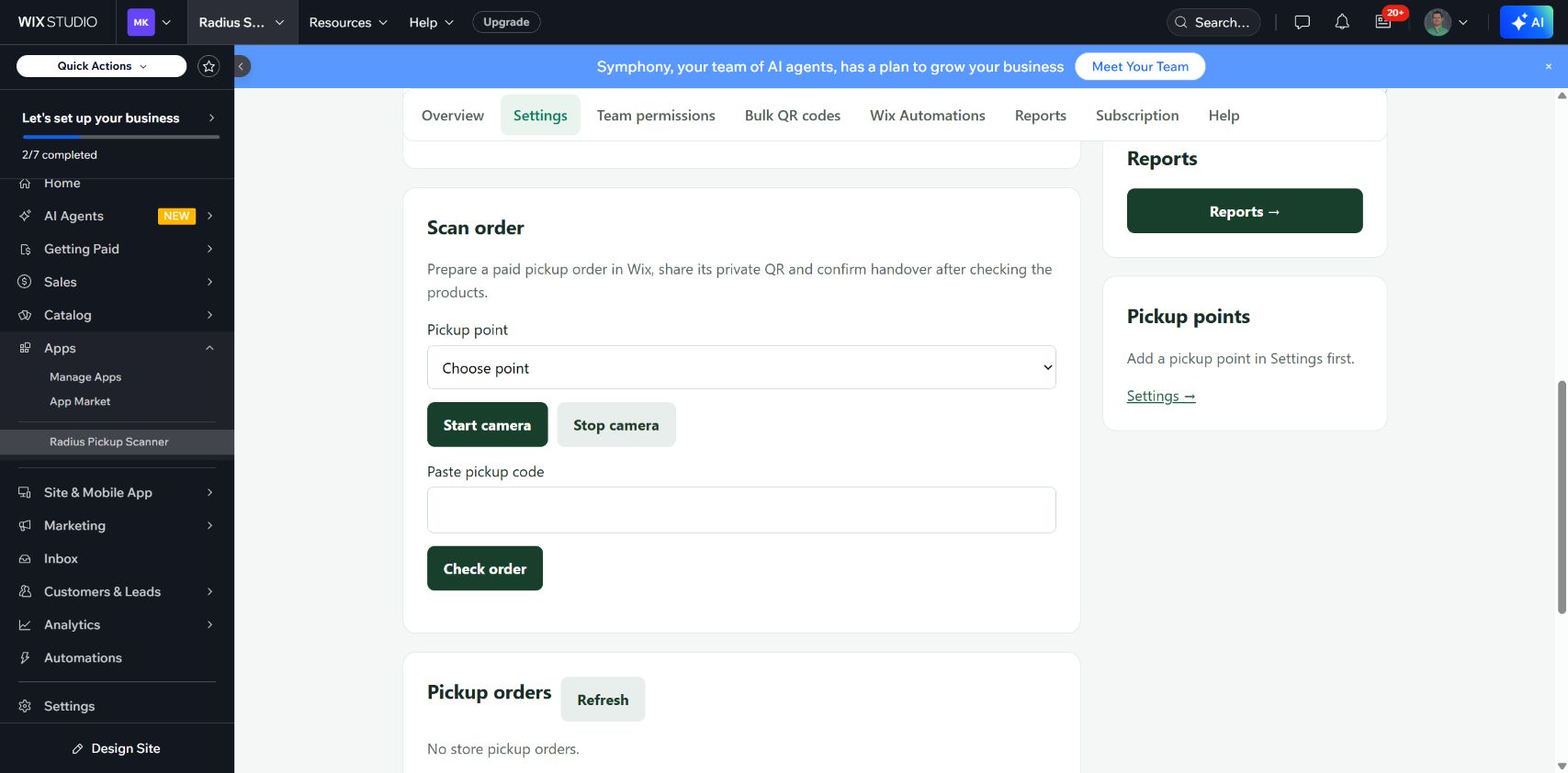
Scan or paste the code in the owner panel or the staff-link scanner. Check products and quantities, click Confirm handover and wait for the saved result. Check Fulfilled in Wix and scan again to verify repeat collection protection.
Staff access and pickup points
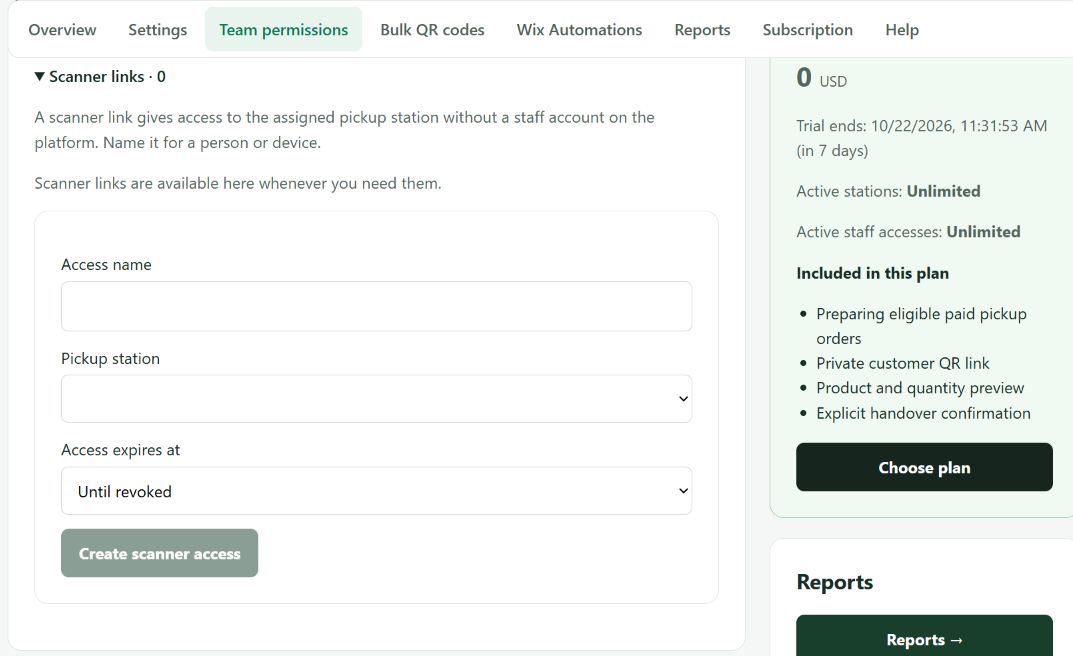
Team permissions → Scanner links. Scanner links work until revoked by default; an expiry date is optional. No Wix staff account is required.
Create access for a person or device, select its pickup station and copy the private link. You can show or replace the link later and revoke access.
The link opens only the scanner for the assigned point. The person checks the products and explicitly confirms handover. It does not grant access to order lists, settings or billing.
Browser scanner
The owner opens Radius in Wix. Staff open the private scanner link in a browser over HTTPS with internet access; their pickup point is assigned automatically. Camera scanning depends on browser permissions and support; a physical camera test remains to be completed.
Alternatively, paste the pickup code. Scanning opens a read-only product preview; it does not hand over the order automatically.
Confirm handover only after checking the products. A Review state means the result must be checked. In Reports, Check result in Wix only reads Wix and can confirm a completed handover; it never repeats the write or unlocks an unconfirmed order.
Bulk QR codes
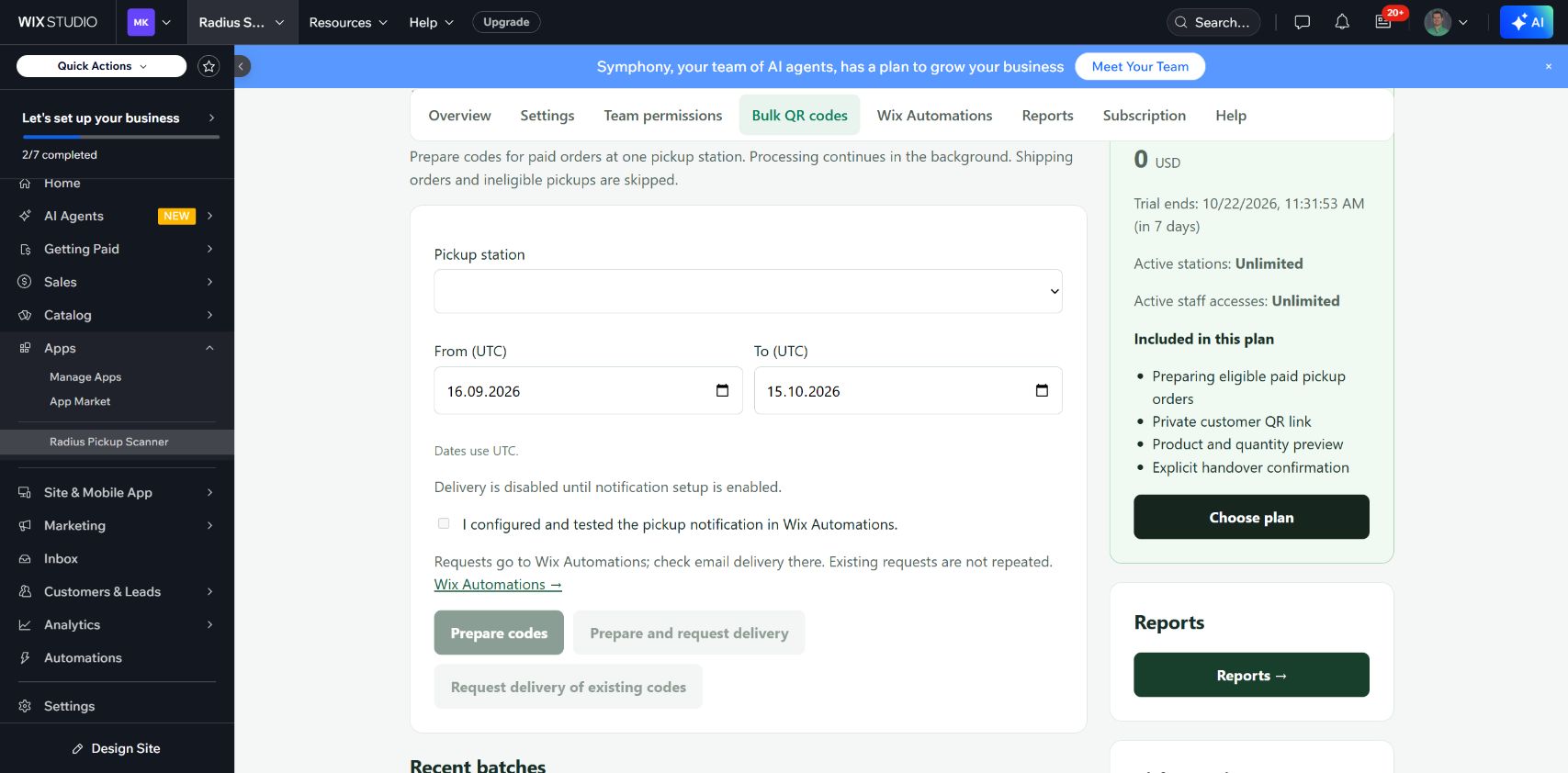
Prepare codes for paid orders at one pickup station. Processing continues in the background. Shipping orders and ineligible pickups are skipped.
Pickup station · From (UTC) · To (UTC). Dates use UTC.
Prepare codes / Prepare and request delivery / Request delivery of existing codes
I configured and tested the pickup notification in Wix Automations.
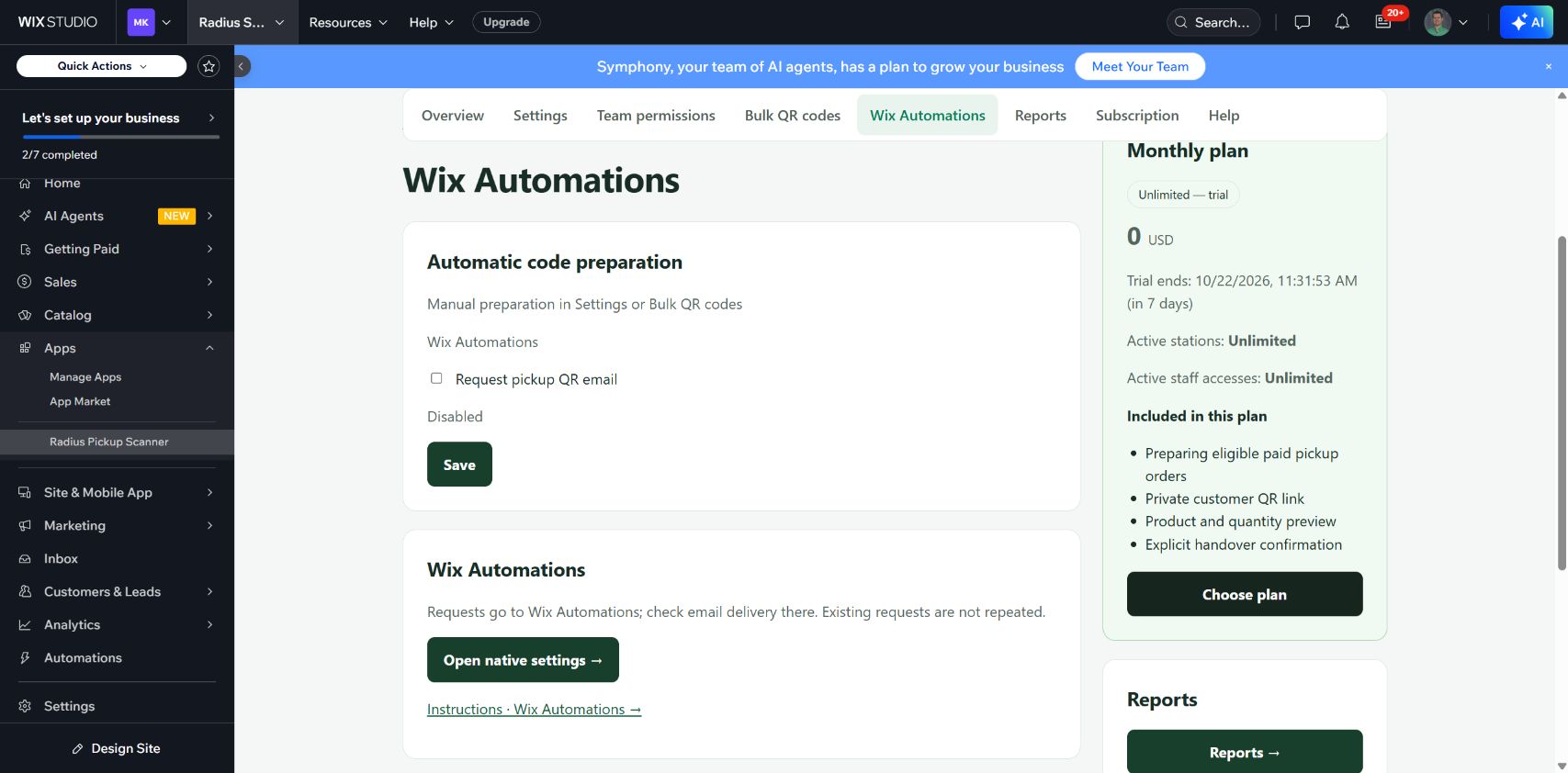
Requests go to Wix Automations; check email delivery there. Existing requests are not repeated.
Resume continues pending orders. Orders requiring review are not retried.
Wix Automations
Configure a Wix automation with the Radius trigger Order ready for pickup and a Send email action. Use the contact from the trigger, the verified sender and the transactional pickup notification topic.
In the email button, select the dynamic Pickup Url field. Disable the public View in browser link. Activate the automation, then enable notifications in Radius → Wix Automations. The same contact must be allowed to receive notifications for different orders.
Requested in Radius means Wix accepted the event, not that the customer received the message. Check the automation run, delivery statistics and the actual mailbox. The development test showed delivery in Wix statistics; opening the actual email button still requires recipient verification.
An uncertain send remains under review and is not automatically repeated. If the order has no contact, the QR can be ready while email cannot be requested. Check the contact and share the private link securely.
Automations → Request pickup QR email
Manual preparation in Settings or Bulk QR codes
Requests go to Wix Automations; check email delivery there. Existing requests are not repeated.
Reports
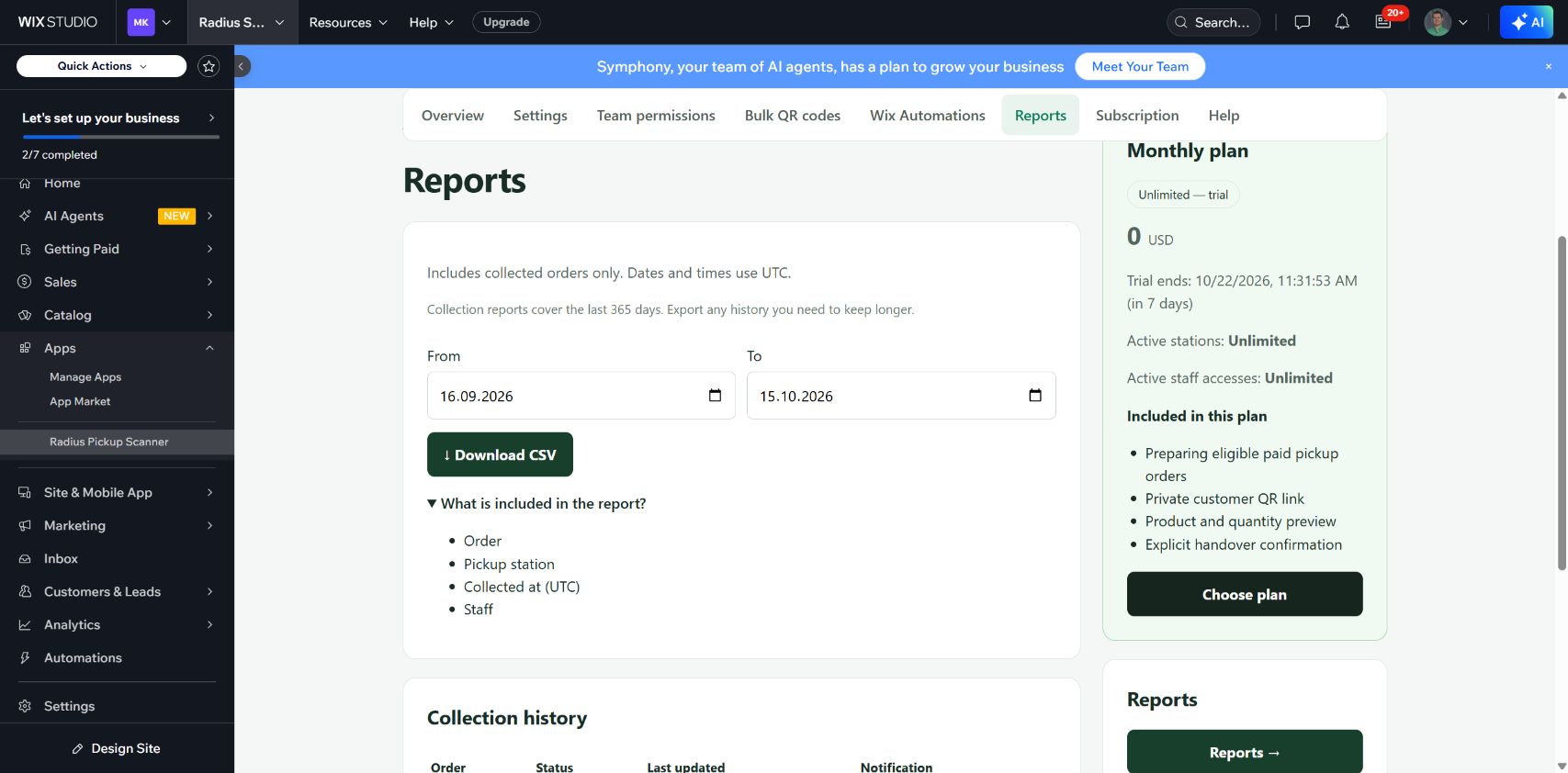
Includes collected orders only. Dates and times use UTC.
From · To → Download CSV
Order · Pickup station · Collected at (UTC) · Staff
Collection reports cover the last 365 days. Export any history you need to keep longer.
FAQ
Is Radius Pickup Scanner publicly installable on Wix?
Radius Pickup Scanner is available in Wix App Market. Every installation starts with 7 full days free on Unlimited.
Does a QR scan immediately complete the order?
No. First check the preview, then explicitly confirm handover and wait for the saved result.
Can staff use their own scanner links?
Yes. The owner creates a private pickup-point link in Team. Staff do not need a Wix account. The link can expire or be revoked.
Does Requested prove email delivery?
No. Check Wix automation statistics and the actual customer mailbox, including the button’s destination.
What should I do when an order needs review?
Check the result in Wix and contact Radius if it remains unconfirmed. Do not repeat the write or release goods on an uncertain result.
Plans
Every plan includes the complete QR pickup workflow. Start with a 7-day free trial.
Basic
109 USD / year
Payment for a year in advance
For one point and a small team.
✓ 1 pickup point
✓ 3 staff accesses
✓ Scanning and pickup protection
pickup history
Install — 7 days freePro
199 USD / year
Payment for a year in advance
For a few points and a growing team.
✓ 5 pickup points
✓ 20 staff accesses
✓ Scanning and pickup protection
CSV history and reports
Install — 7 days freeUnlimited
399 USD / year
Payment for a year in advance
For larger pickup operations.
✓ Unlimited points
✓ Unlimited access
✓ Scanning and pickup protection
CSV history and reports
Install — 7 days freePrices in USD, before applicable tax. You will see the final amount before payment.
Install from Wix App Market. Choose and manage your paid plan in Wix. Full Unlimited access is free for 7 days from installation.
Included in every plan
- Preparing eligible paid pickup orders
- Private customer QR link
- Product and quantity preview
- Explicit handover confirmation
- Repeat collection protection
- Pickup history and review states
Every plan includes the complete QR pickup workflow. Your first 7 days from installation are free on Unlimited.