Radius Pickup Scanner Support
Last reviewed: · Setup, scanning, customer QR codes and troubleshooting.
Email: hello@radiusdelivery.app
Include your WooCommerce store domain, the feature involved, what happened and the approximate time. Support is available in English and Polish.
Complete setup and use the overview
Your first pickup — step by step
Follow the five steps in the Radius dashboard in order. Complete each task and check its result before starting customer pickups.
Store connection and conditions
Install and activate the plugin. In WooCommerce → Radius Scanner, choose Connect with Radius, sign in, read and accept the store conditions. Return to WordPress and use the plugin button to open the Radius dashboard.
What to check: Your store is connected, conditions are accepted and the dashboard opens for the correct store.
Local pickup and point
Open WooCommerce → Settings → Shipping → Local pickup. Select “Enable local pickup”, choose “Add pickup location”, enter the details and enable that location. Save changes and check pickup at checkout. Then create an active point in Radius and assign the detected pickup location. For classic checkout, configure the method in the appropriate shipping zone.
What to check: Selecting the checkbox alone does not complete this step. You need pickup enabled, at least one enabled WooCommerce pickup location and assignment to an active Radius point. Only then does the status change to “Done”.
Detailed instructions ↗Staff access
Create a private scanner link for this point. Open it on the staff phone in Safari or Chrome, allow camera access and check that access is active.
What to check: The link opens the scanner at the correct point; staff do not need a WordPress account.
Detailed instructions ↗Email and a paid order
Place a test order using the assigned pickup method. Pay for it and check Processing status, no refunds and a prepared code. Verify actual customer email delivery and open the QR link from the email or order.
What to check: The customer received the email, the link opens the correct QR and the order is assigned to the point. Enabling an email alone does not prove this.
Detailed instructions ↗Scan and confirm collection
Scan the test QR using the staff link. Check products and quantities, confirm collection and wait for it to be saved. Hand over goods after confirmation. Check Completed status in WooCommerce and scan the code again.
What to check: Collection is saved, the order has Completed status and a repeat scan does not allow another collection.
Detailed instructions ↗
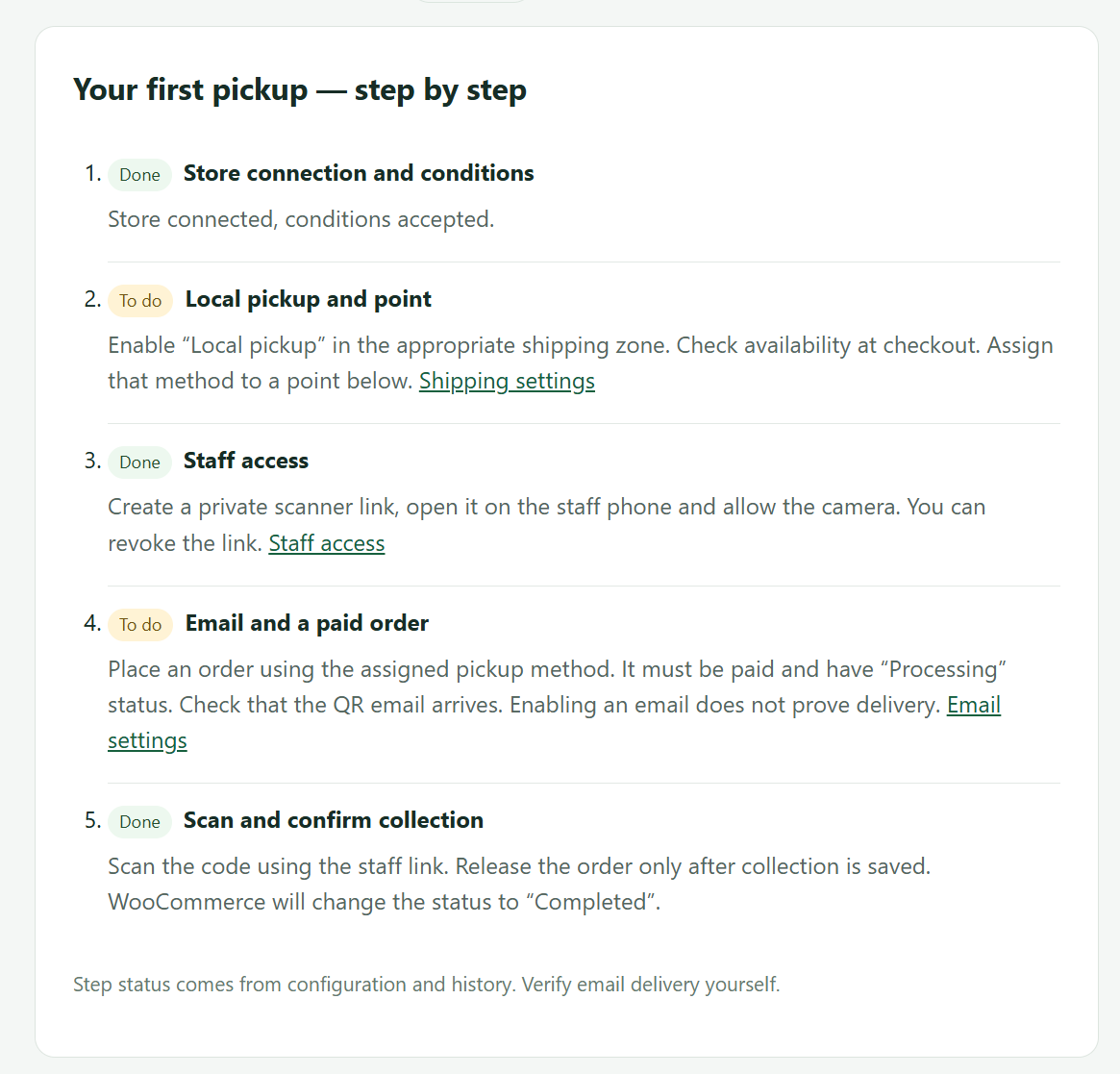
Done means the dashboard detected the relevant configuration or a history record. It does not automatically confirm email delivery or all current store settings. Step statuses are independent: an earlier collected test does not replace checking the current pickup method. Verify QR email delivery yourself.
Enable local pickup in your store
Every store using Scanner must offer local pickup to customers. Check this configuration before preparing QR codes.
For block checkout, open WooCommerce → Settings → Shipping → Local pickup, as shown below.
Select Enable local pickup, choose Add pickup location and enter the pickup point details. In this screenshot, pickup is enabled but the location list is still empty.
Click Save changes and check that customers can select local pickup at checkout.
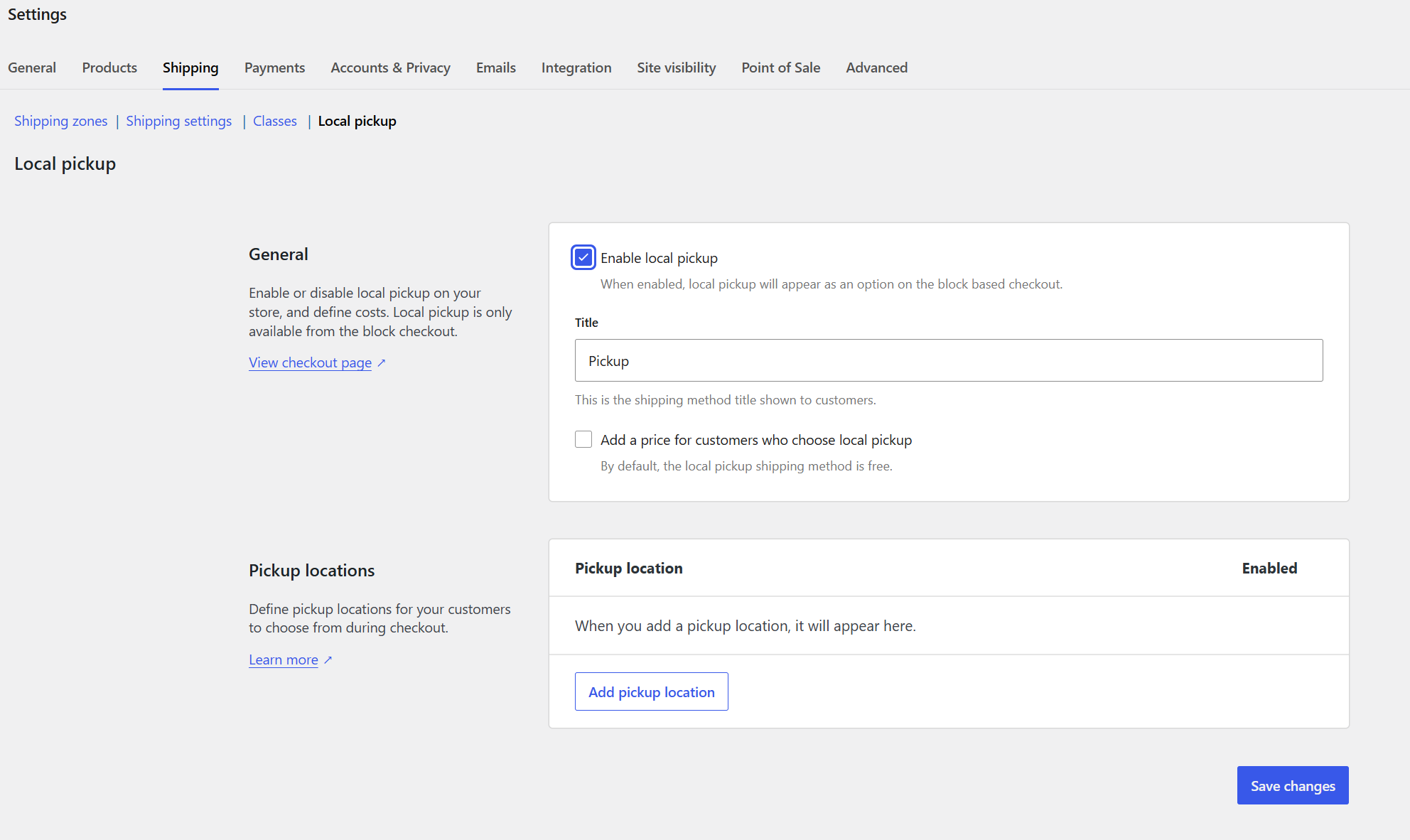
Scanner plugin 0.1.9 or later detects block-checkout locations and shipping-zone pickup methods. Use unique location names. An empty “Pickup locations” list means setup is incomplete even with the checkbox selected. After saving, return to Radius and assign the location to a point.
Customer QR — one-time setup
The plugin adds a pickup-code link to the WooCommerce order and store emails. Customers open the link and show the QR to staff. The link appears automatically once the code is prepared; no extra customer-account block is needed.
A code is prepared for a paid order with Processing status, no refunds and a pickup method assigned to exactly one pickup point. Creating an order alone is not enough.
The code covers the whole order. Once collection is saved, it cannot be used to collect the order again. Before launch, check the link in the order details and a test customer email.
Quick start
Prepare the goods for an eligible paid order and check its pickup point. Codes are prepared for paid orders with Processing status. Arrange customer notifications around when the goods are actually ready.
Staff open their private link in a phone or tablet browser, allow camera access and scan the customer QR. They can also enter the code manually. They do not need a WordPress account.
Check the order, products and quantities. Confirm collection and wait for it to be saved. Successful collection changes the WooCommerce order to Completed. If the result is uncertain, check the status before handing over the goods.
Staff access and pickup points
In the Radius dashboard, create scanner access for a selected pickup point. Set an expiry date or leave access valid until revoked. Share the private link only with the assigned staff member.
The link permits scanning at the assigned point and does not grant WordPress administration access. You can revoke it in the dashboard. Managing the plugin requires WooCommerce permissions.
Staff use the scanner in a phone or tablet browser. They do not need a separate terminal or store dashboard access.
Browser scanner
Open the staff link in Safari or Chrome over HTTPS. Allow camera access, point the camera at the QR and check the order shown.
If the camera does not work, check browser and system permissions, close other apps using the camera or enter the code manually. An internet connection is required; offline collection is not supported.
After confirming collection, wait for a clear confirmation that it was saved. Scanning a collected order again will not allow another collection. A synchronization error or conflict requires the store manager to check the order.
Bulk QR codes
Prepare codes for paid orders at one pickup station. Processing continues in the background. Shipping orders and ineligible pickups are skipped.
Pickup station · From (UTC) · To (UTC). Dates use UTC.
Prepare codes / Prepare and request delivery / Request delivery of existing codes
I configured and tested pickup QR email delivery in WordPress.
Delivery requests go to WordPress. Email delivery runs in its background queue; existing requests are not repeated.
Resume continues pending orders. Orders requiring review are not retried.
Automations
The plugin syncs eligible orders with Radius and adds the pickup-code link to WooCommerce emails. Delivery uses your store's email system. Check email settings and deliverability with a test order.
Preparing a code does not confirm email delivery. If a customer has not received the email, check the order status, pickup link, enabled WooCommerce emails, mail logs and spam folder.
Synchronization uses the plugin and WooCommerce scheduled actions. Check failed or pending actions if an order or its code has not been synchronized.
Automations → Request pickup QR email
Automatic code preparation · Request pickup QR email
Delivery requests go to WordPress. Email delivery runs in its background queue; existing requests are not repeated.
Reports with a date range
Includes collected orders only. Dates and times use UTC.
From · To → Download CSV
Order · Pickup station · Collected at (UTC) · Staff
Collection reports cover the last 365 days. Export any history you need to keep longer.
FAQ
Why does an order have no QR?
Check payment, Processing status, absence of refunds, the pickup method, point assignment and store connection. For older orders, run Prepare existing orders and check the queue.
Do staff need a WordPress account?
No. They open a private scanner link in their browser. They need internet access and permission for the assigned pickup point.
Where do customers find their QR?
In the pickup link on their WooCommerce order and in the store email, once a code has been prepared and the email includes the link.
Can customers collect part of an order or pay at pickup?
This integration handles whole, paid orders. Partial collection, payment at pickup and offline operation are not supported.
What should I do after an error or repeat scan?
Do not hand over goods again based only on the QR. Check the collection record and WooCommerce order status. Contact support for a conflict or synchronization error.
Does disconnecting the plugin cancel the subscription?
No. Disconnecting stops synchronization. Manage your subscription separately in the Radius dashboard.
Plans
Every plan includes the complete QR pickup workflow. Start with a 7-day free trial.
Basic
109 USD / year
Payment for a year in advance
For one point and a small team.
✓ 1 pickup point
✓ 3 staff accesses
✓ Scanning and pickup protection
pickup history
Open Radius dashboardPro
199 USD / year
Payment for a year in advance
For a few points and a growing team.
✓ 5 pickup points
✓ 20 staff accesses
✓ Scanning and pickup protection
CSV history and reports
Open Radius dashboardUnlimited
399 USD / year
Payment for a year in advance
For larger pickup operations.
✓ Unlimited points
✓ Unlimited access
✓ Scanning and pickup protection
CSV history and reports
Open Radius dashboardPrices in USD, before applicable tax. You will see the final amount before payment.
Upgrading to a higher plan: surcharge for the remaining period. Amount to be approved in the panel before payment.
Included in every plan
- Automatic code preparation for eligible paid orders with Processing status
- Bulk code preparation by pickup station and selected date range
- Customer QR link on the WooCommerce order and in store emails
- Phone camera scanning in a browser, or manual code entry
- Scan → check products and quantities → confirm collection
- WooCommerce order changed to Completed after collection is saved
- Duplicate pickup protection and collection status
- Point-scoped team access, expiry settings and immediate revocation
- Pickup history in the Radius dashboard
For whole, paid local pickup orders with Processing status, no refunds and exactly one assigned pickup point. Internet access is required. Customer messages use your WooCommerce store email system; check configuration and deliverability.